Field Mapping

Field mapping tells Byteline which fields contain corresponding information in your connected apps. For example, you can map Email in one app to Email Address in the other, even though their names differ.
For each mapping, you choose which fields to connect and, where supported, which direction future changes should travel.
Review and edit your field mappings
After selecting the tables or collections to sync, review their field mappings.
- Click Show field matching if the mappings are collapsed.
- Review the automatically suggested mappings. Check that each pair contains the information you want to sync.
- To change a mapping, use the field dropdown to select a different field.
- Click Add mapping to include another pair of fields.
- Remove any mappings you do not need.
- Review the sync direction for each mapping, where available.
- Make sure all fields marked Required are mapped before continuing.
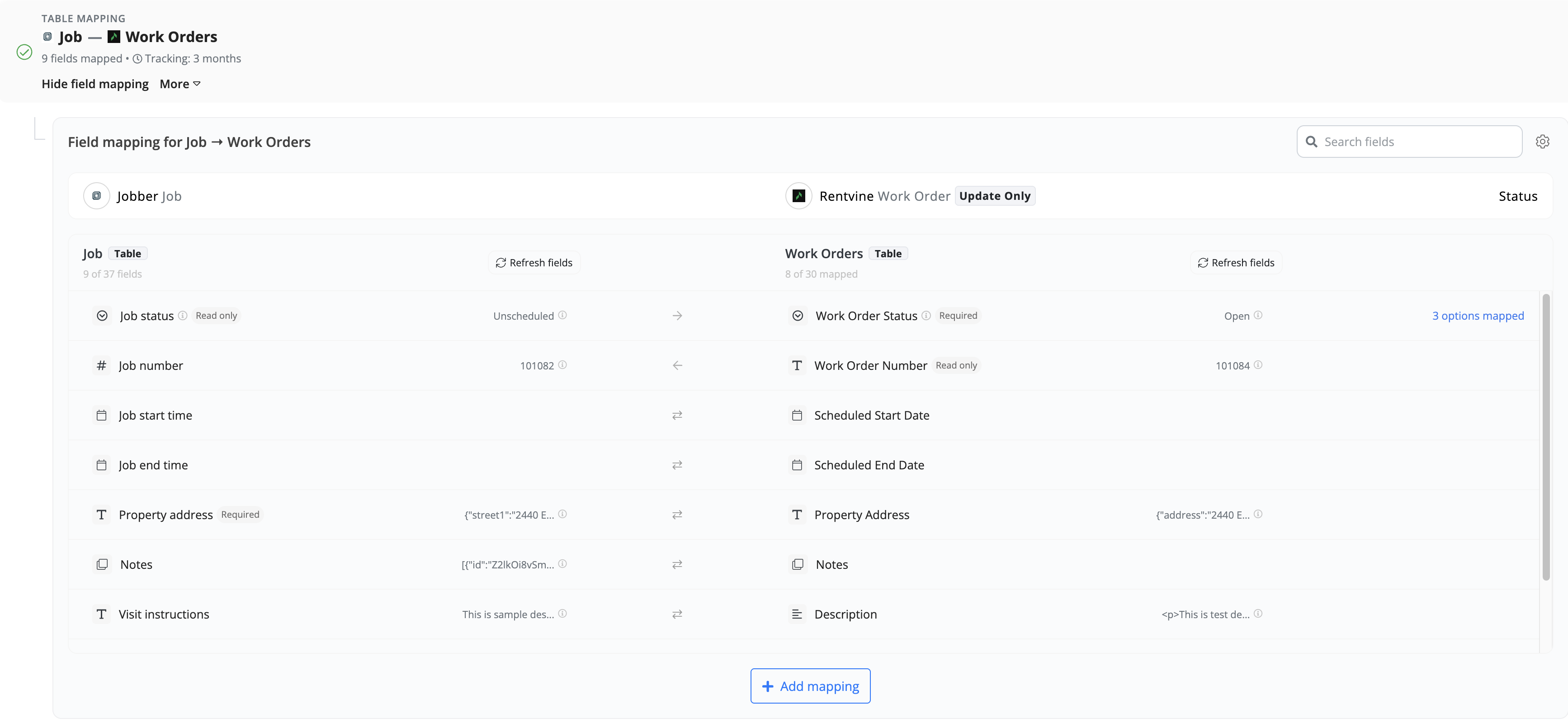
For example:
Field in the left app | Field in the right app | Information synced |
Full Name | Name | The person's name |
Email Address | The person's email address | |
Company | Company Name | The person's company |
Choose fields that represent the same information and can accept the values being sent. Similar field names do not always mean the fields belong together.
When syncing existing records, mapped destination fields may be overwritten with source values. Review your mappings and the initial sync preview before starting.
Choose the field-level sync direction
Field-level direction controls how future changes move between mapped fields during ongoing sync. Use the direction control on the mapping to select an available direction.
Direction | What happens during ongoing sync |
Left → Right | Changes to the left field are sent to the right field. Changes to the right field are not sent back. |
Left ← Right | Changes to the right field are sent to the left field. Changes to the left field are not sent back. |
Left ↔ Right | Changes to either field can update the corresponding field in the other app. |

For example, in a two-way sync, you might keep contact details synchronized in both directions while allowing a reporting field to receive updates from only one app.
The available directions depend on the connected apps, fields, and sync configuration.
Initial sync versus ongoing sync
The initial sync of existing records runs in one direction, selected for the table or collection. Field-level directions configure ongoing updates; choosing a two-way field mapping does not make the initial sync two-way.
Check both the initial sync direction and the field-level directions before starting.
Required and read-only fields
Required fields
Fields marked Required must be mapped. Make sure the source provides valid values for these fields. A mapping alone does not prevent an error if a required value is empty or rejected by the destination app.
If every record should receive the same value, you can use a fixed value instead of a source field.
Read-only fields
Read-only fields, such as record IDs and calculated fields, can supply values but cannot receive updates from the other app.
For example:
Notion ID → Airtable “Notion ID”
Byteline can copy the Notion record ID into a writable Airtable field. Editing that Airtable field does not change the original Notion ID.
When a read-only field is mapped, its direction is restricted so that it acts as the source.
Use a fixed value
Use a fixed value when a destination field should receive the same value for every synced record. For example, set a Source field to Byteline.
- Open the field dropdown for the field you want to set.
- Select Use fixed value at the bottom of the dropdown.
- Enter or select the value.
- Save the mapping.
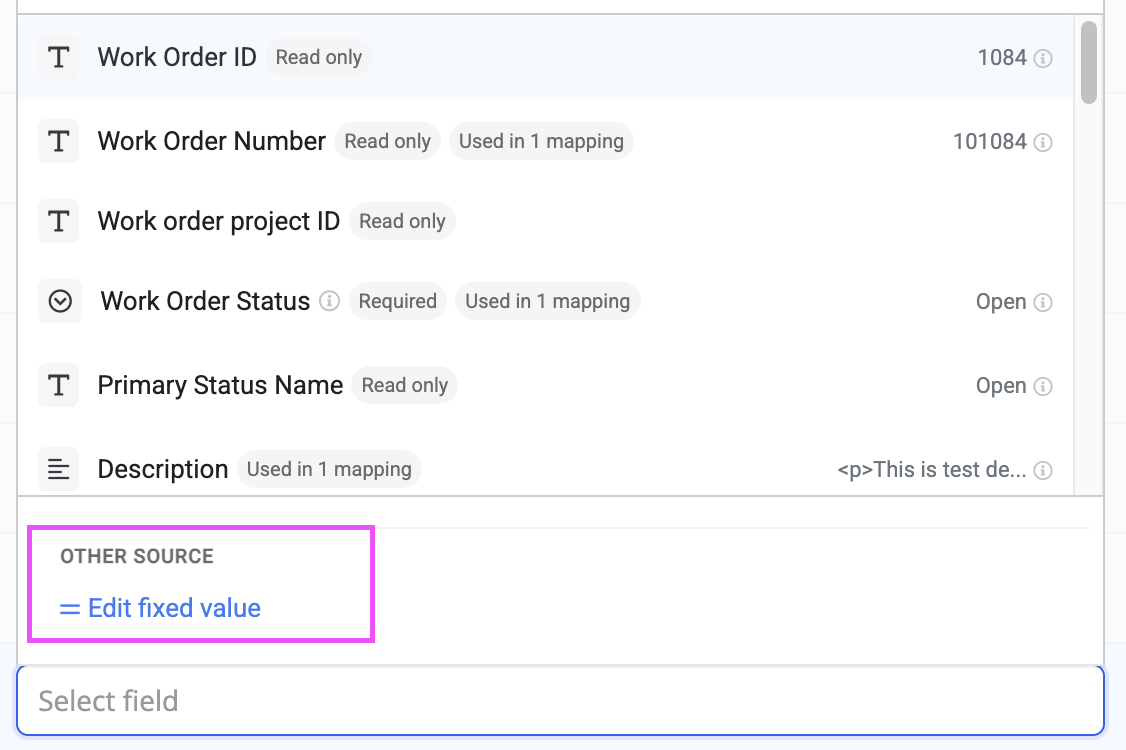
The input depends on the destination field type: text fields accept text, number fields accept numbers, boolean fields accept true or false, and select fields let you choose an allowed option.
Fixed values are one-way. There is no source field in the other app to receive changes back.
Map one field to multiple fields
You can send one source field to more than one field in the connected app.
For example, you might use the same source Email field to populate both Contact Email and Notification Email in the destination.
These mappings follow three rules:
- Only one mapping from that field can be two-way.
- Additional mappings from the same field must be one-way.
- Each receiving field can have only one source field.
For example:
Mapping | Direction |
Email ↔ Contact Email | Two-way |
Email → Notification Email | One-way |
Map select and multi-select options
Select fields may use different labels for the same choice. For example, one app might use Active, while the other uses Open.
To pair different labels:
- Click Map options on the select or multi-select field mapping.
- Pair the corresponding options, such as Active and Open.
- Add more pairs as needed.
- Click Apply mapping.
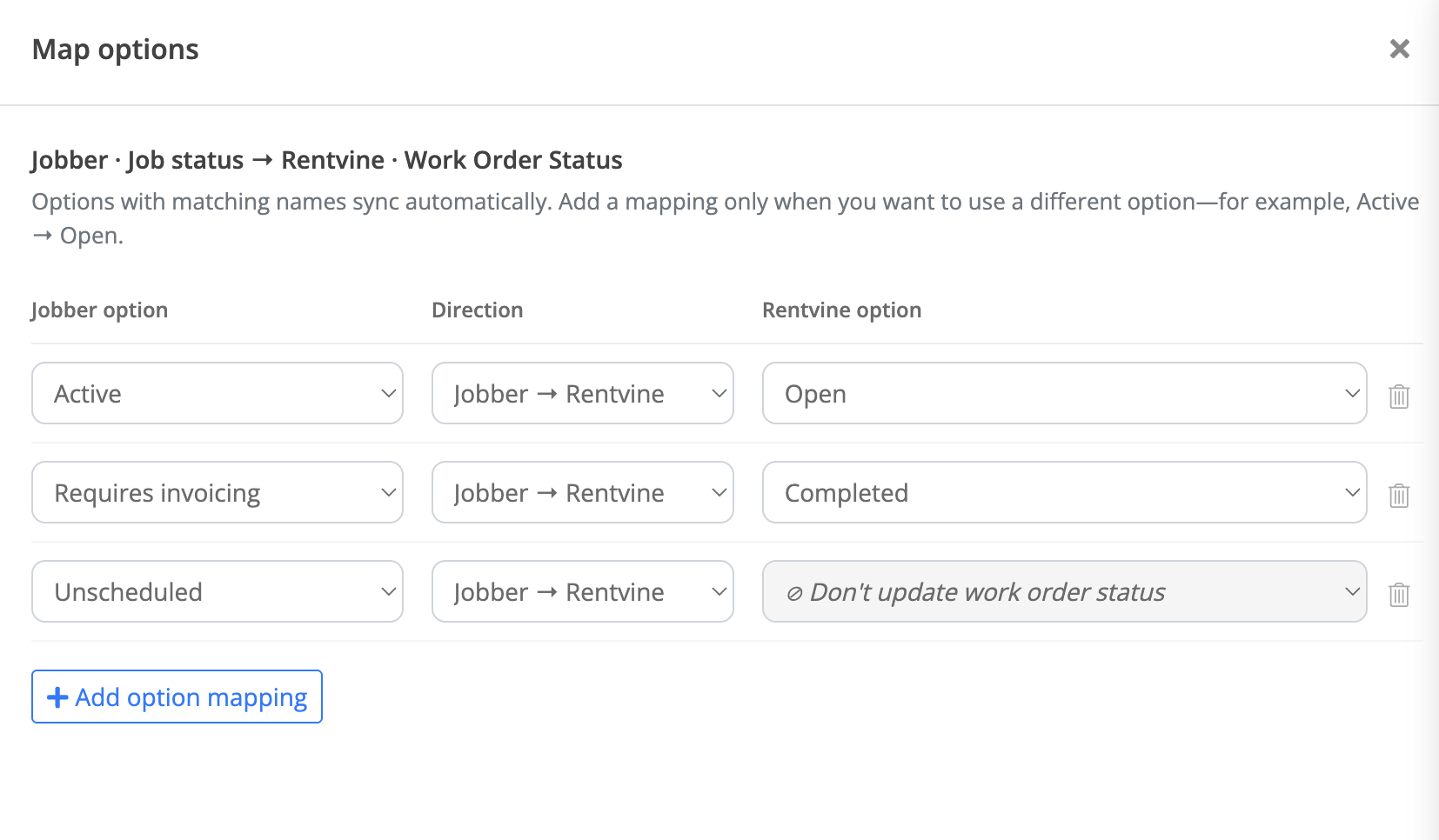
Options with matching names do not need an explicit pair.
By default, Byteline automatically creates missing options when the destination app supports it. You can turn off Automatically create missing options under Map options if the destination's option list should stay fixed.
If a missing option cannot be created, its value is skipped and a sync issue is raised. For multi-select fields, each value is handled separately. Previewing a sync does not create options; they are created when the sync writes data.
See Automatically creating select options for details.
Map multiple values to a single-value field
Some source fields contain several values, such as multiple phone numbers or email addresses. If you map one of these to a destination field that accepts only one value, Byteline sends:
- The primary value, if the source identifies one.
- Otherwise, the first value in the list.
For example, a contact's primary phone number is used when syncing several source phone numbers into one destination phone field.
Understand empty field values
Byteline treats empty values differently when creating a record and when updating a record that has already been created or matched.
Situation | Behavior |
Creating a record with an empty source field | Byteline skips that empty field by default, allowing the destination app to handle defaults or other field behavior. |
A user clears a mapped source field on an already-created or matched record | Byteline also clears the corresponding destination field, following the mapping's sync direction. |
A field is missing from an app response, unavailable, or not included in the sync | Byteline does not interpret this as the user clearing the field. |
For example, if a synced description contains Lightweight cotton shirt and you later clear the source description, Byteline clears the corresponding destination description too.
Map fields in different languages
If your app stores languages in separate fields, map each one to its corresponding destination field. For example, map Title_EN to the English title field and Title_FR to the French title field.
See Multilingual Content Support for details, including considerations for apps with native localization features.
Change mappings on a live sync
Open the sync from My Syncs, click Edit, and update the field mappings. The running sync continues using its current settings while you edit.
Review the save screen to see how your changes will apply. Saving a mapping change for future activity does not automatically update already-synced records. Where available, choose Update already-synced records to apply the changed mappings to records the sync has already connected.
Some changes require a restart. Follow the action shown on the save screen.
See Editing a Live Sync for the full workflow and available save options.
