Ongoing Sync (Real-Time & Scheduled Updates)

Ongoing Sync keeps your connected apps continuously up to date after the sync goes live. Once enabled, Byteline listens for changes in your source app and automatically applies those changes to the destination app based on your configured sync direction and field mappings.
Byteline supports ongoing sync through both real-time webhooks and scheduled polling. Depending on the app, changes may sync instantly or within up to 15 minutes. The exact timing depends on how the source app exposes changes.
Ongoing sync applies only to new, updated, or deleted records going forward. It does not reconcile existing data or re-evaluate matching keys—that process is handled separately by Historical Sync. Once ongoing sync is active, Byteline tracks changes using the established record links created during setup or historical sync.
How Changes Are Detected
Byteline detects changes in connected apps using one of two methods: webhooks or scheduled polling. The method used depends on what the source app supports and requires no configuration from you.
For apps that support webhooks, changes are sent to Byteline as soon as they happen. This allows updates—such as new records or field changes—to sync in near real time, often within seconds.
For apps that do not support webhooks, Byteline uses scheduled polling to check for changes at regular intervals. In these cases, updates may take up to 15 minutes to sync. Polling runs automatically in the background and ensures changes are eventually captured even when instant notifications are not available.
Regardless of the detection method, all changes go through the same validation, mapping, and delivery process before being applied to the destination app.
What Changes Are Synced
During ongoing sync, Byteline monitors the source app for record changes and syncs them to the destination app based on your configured sync direction and field mappings.
The following types of changes are synced:
Record creation
When a new record is created in the source app, Byteline creates a corresponding record in the destination app and populates it using your configured field mappings.
Record updates
When an existing record is updated in the source app, Byteline syncs the changes to the corresponding record in the destination app. Only mapped fields and fields with an active sync direction are updated.
Record deletion
When a record is deleted in the source app, the corresponding record is also deleted in the destination app. This ensures both apps remain consistent and prevents orphaned or outdated records from persisting in the destination.
All changes are applied using the existing record linkage established during setup or historical sync. Byteline does not attempt to re-match records during ongoing sync.
Sync Direction in Ongoing Sync
In ongoing sync, Byteline does not use a single one-way or two-way setting at the sync level. Instead, sync direction is defined at the field level, and ongoing sync behavior is computed based on those field-level rules.
For each mapped field, you choose the direction in which changes are allowed to flow between apps. When a record changes, Byteline evaluates the modified fields and syncs only the changes that match the configured direction for each field.
Fields not included in the field mapping are ignored during ongoing sync. Changes to unmapped fields do not trigger updates and are not synced to the other app.
This field-level approach allows different apps to remain the system of record for different parts of the same record, while preventing unintended updates to fields you have not explicitly mapped.
Field-Level Direction and Exclusions
Ongoing sync in Byteline operates strictly based on field mappings. Only fields that are explicitly mapped between the source and destination apps are considered during sync.
For each mapped field, the configured direction determines whether a change is eligible to be synced. If a change occurs in a field that does not allow syncing in that direction, the change is detected but intentionally ignored.
Fields that are not included in the field mapping are excluded entirely from ongoing sync. Changes to these fields do not trigger updates and are never applied to the other app.
Some fields in destination apps are read-only or system-managed, meaning they cannot be written to through the destination app’s API. For such fields, Byteline only allows the field to be mapped in the direction from the read-only app to the other app. Changes to read-only fields are still detected in the source app, and they can be synced outward to the other app—but Byteline will not attempt to write to that read-only field.
This field-level control ensures that only the intended data flows between apps, prevents accidental overwrites, and allows each app to remain authoritative for specific fields.
What Happens When a Change Fails
If a change cannot be synced during ongoing sync, Byteline records the failure and surfaces a detailed error message explaining why the change was not applied. Common reasons include API validation errors, permission issues, rate limits, or destination app constraints.
Failed changes do not stop the overall sync. Byteline continues processing subsequent changes while tracking failures independently.
All failed changes are visible in the sync activity or change history, where you can review the exact error returned by the destination app. Once the underlying issue is resolved, you can resync failed records to retry syncing those changes without rerunning historical sync or affecting successfully synced records.
Resyncing reprocesses only the failed changes using the latest field mappings and sync rules, ensuring a safe and targeted recovery.
Resyncing Failed Records
When a change fails during ongoing sync, Byteline marks the affected record as failed and provides a detailed error explaining what went wrong. You can review the failure reason, resolution tips, and technical details directly from the failed record view.
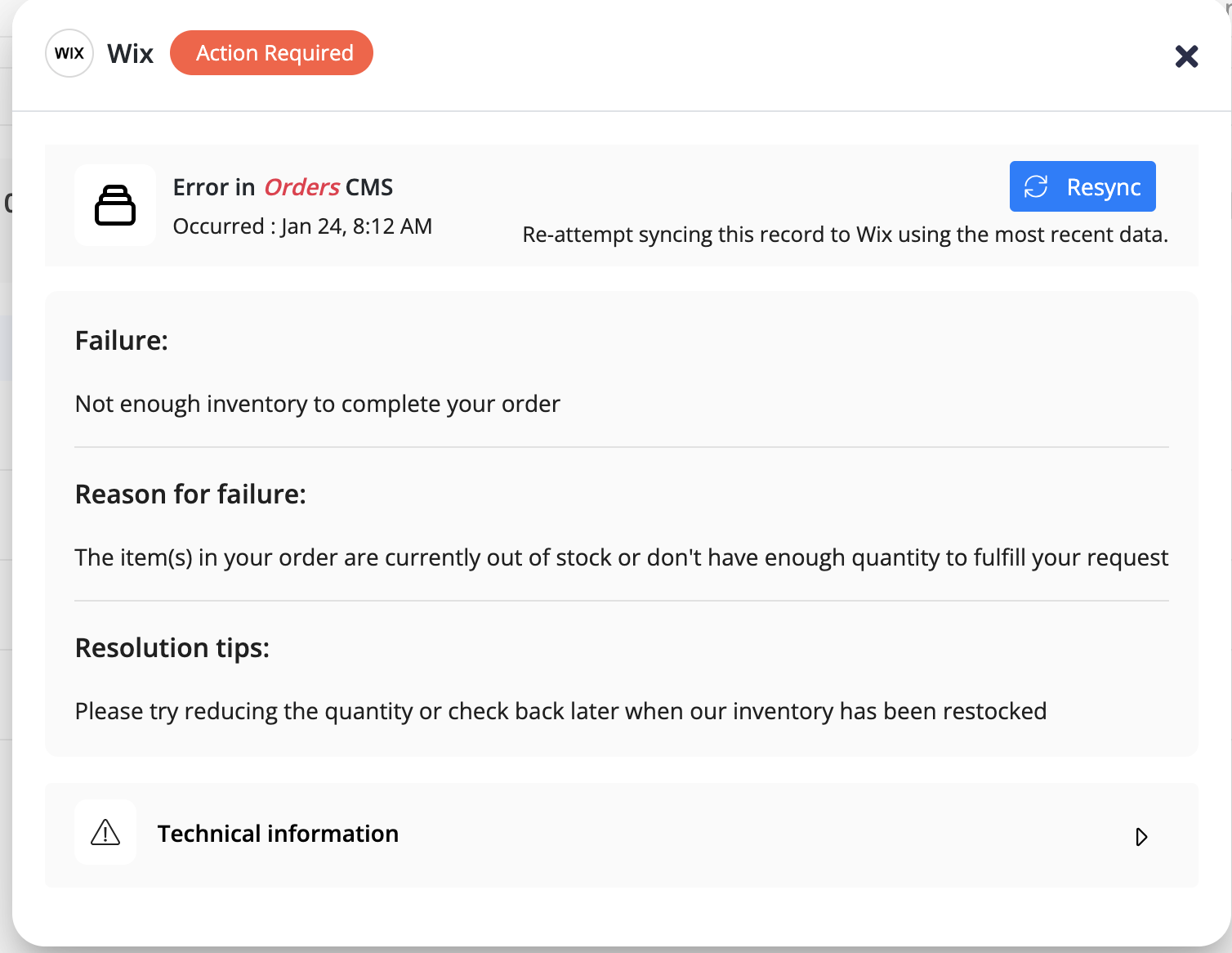
Once the underlying issue is resolved—such as fixing validation errors, adjusting inventory, updating permissions, or correcting field values—you can use the Resync button to retry syncing the record.
Clicking Resync re-attempts syncing the record using the most recent data and the current field mappings and sync rules. Only the failed record is retried; other records are not affected.
Resyncing does not rerun historical sync and does not re-evaluate matching keys. It is a targeted recovery mechanism designed to safely retry a single failed change without disrupting the rest of the ongoing sync.
Best Practices for Ongoing Sync
Before enabling ongoing sync, ensure your field mappings and sync directions are configured correctly. Since ongoing sync relies on these rules to determine how changes flow between apps, careful setup helps prevent unintended updates later.
If you make schema changes, update permissions, or modify field mappings, it’s recommended to review recent sync activity and address any failed records promptly. Use the Resync option to retry failed records once issues are resolved, rather than rerunning historical sync.
Remember that ongoing sync applies only to future changes. If you need to reconcile existing data or establish record relationships, use Historical Sync before relying on ongoing sync.
By combining historical sync for initial alignment and ongoing sync for continuous updates, Byteline ensures your connected apps remain consistent, reliable, and up to date over time.
