Use case
Relevant apps:
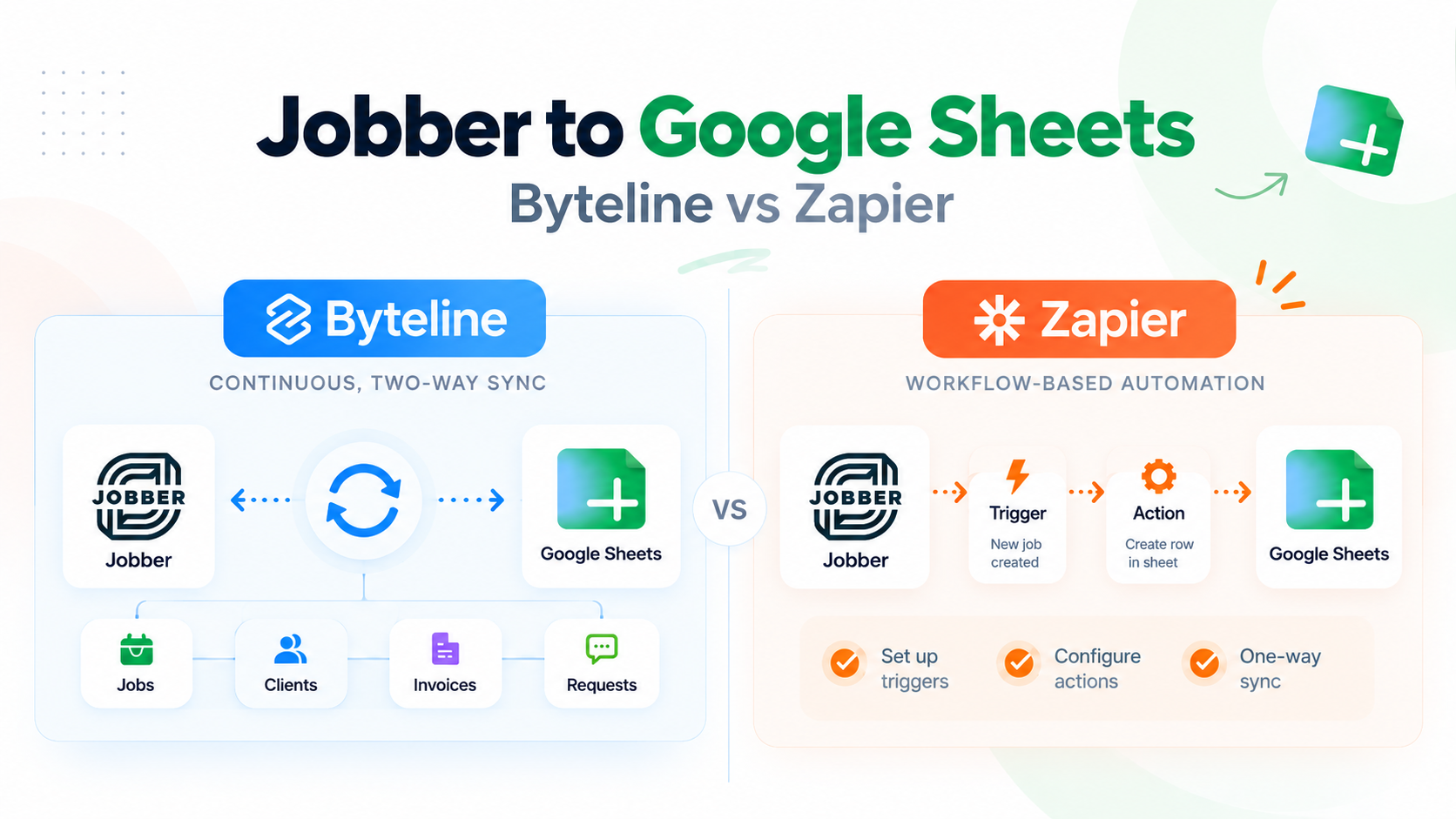
Jobber to Google Sheets: Byteline vs Zapier
Why connect Jobber to Google Sheets?
Jobber is where many home service businesses manage the day-to-day work: clients, jobs, requests, invoices, scheduling, and more.
But there are plenty of reasons you may still want that information in Google Sheets.
Maybe your operations team has a custom spreadsheet they already use. Maybe you want to build reports that combine Jobber data with information from another system. Or perhaps you simply want a flexible place where your team can sort, filter, calculate, and analyze Jobber records without repeatedly exporting CSV files.
The challenge isn’t usually getting Jobber data into a spreadsheet once.
The harder part is keeping it current.
A manual export from Jobber to Google Sheets may work for a one-time analysis, but as soon as someone updates a job, adds a new client, or changes an invoice in Jobber, your spreadsheet starts becoming outdated.
That’s where automation and data sync tools come in.
How Zapier connects Jobber to Google Sheets
Zapier is primarily an automation platform. Its basic model is straightforward: something happens in one application, which triggers an action in another.
For example, you could create a workflow that says:
- When a new invoice is created in Jobber, add a row to Google Sheets.
- When a new client is created in Jobber, add that client to a spreadsheet.
- When a Jobber request is created, add a corresponding row to Google Sheets.
Zapier currently provides prebuilt Jobber and Google Sheets workflows for use cases like adding new invoices, clients, quote approvals, requests, and completed jobs to Sheets.
Jobber describes the integration similarly: each Zap has a trigger in one application followed by an action in another.
That model works particularly well when you have a clear event that should cause something else to happen.
For example, if a new Jobber client should automatically receive a welcome email, or closing a job should send a message to another system, Zapier is a natural fit.
The distinction becomes more important when your goal isn’t to automate an action, but instead to maintain an ongoing copy of your Jobber dataset in Google Sheets.
How Byteline syncs Jobber to Google Sheets
Byteline approaches the problem differently.
Instead of starting with a trigger such as “a new invoice was created,” you configure the data you want to keep synchronized.
For a Jobber Google Sheets sync, that can include Jobber data such as clients, jobs, invoices, and requests. Your spreadsheet can then stay connected to Jobber so that the data continues to reflect changes over time.
This means you can start with the records you already have in Jobber rather than only waiting for future events.
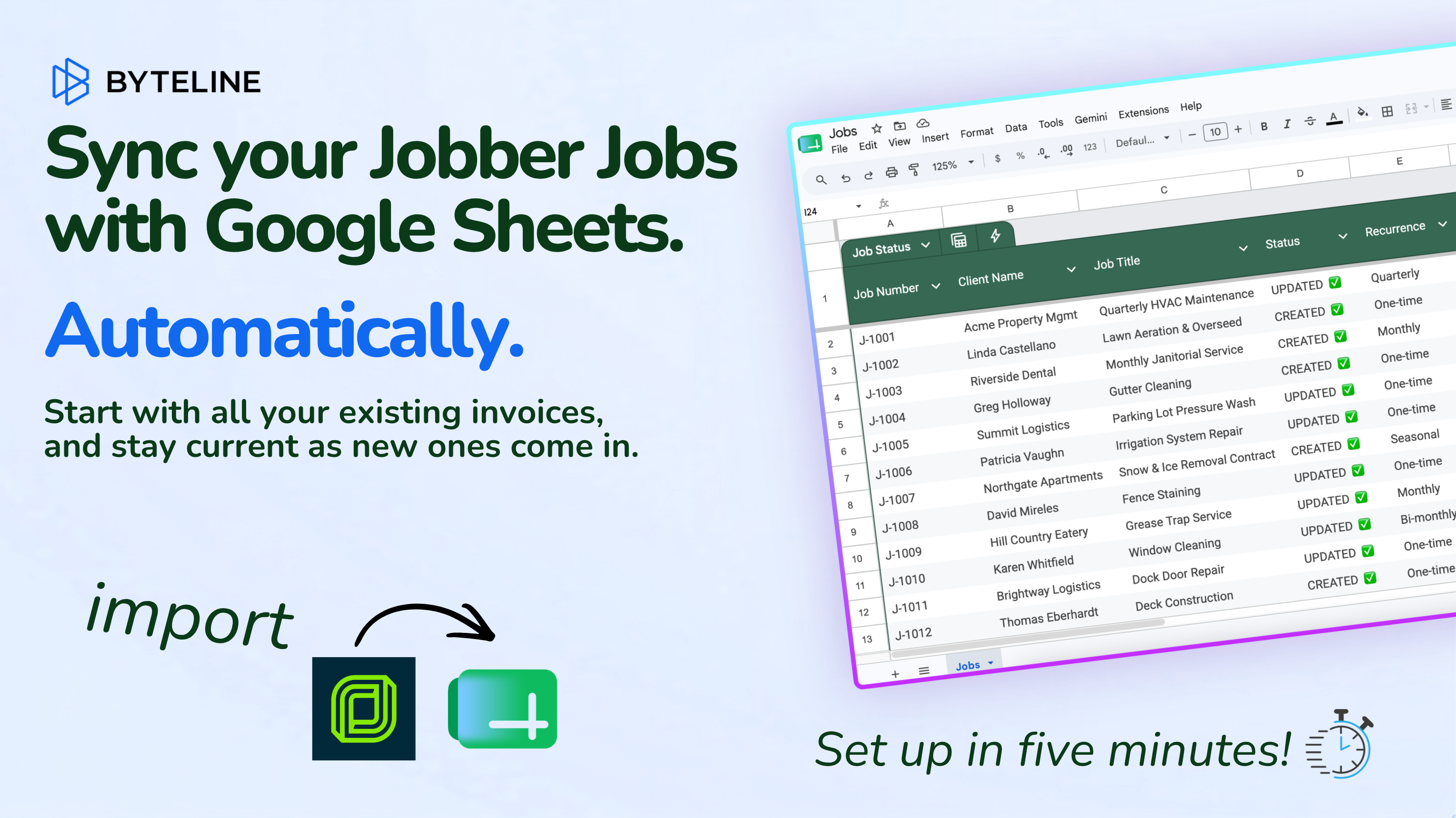
For example, you might create one Google Sheets workbook with separate tabs for:
- Jobs
- Clients
- Invoices
- Requests
Byteline can first bring over the existing Jobber records and then continue monitoring the data so the spreadsheet stays updated as records change.
That’s an important distinction if your goal is live Jobber data in Google Sheets rather than a series of individual automations.
You can see the complete use case here:
See how Byteline keeps Jobber data live in Google Sheets
If you want the technical setup steps, supported Jobber data types, and configuration details, you can also read the Byteline Jobber Data Sync documentation. Byteline’s current documentation covers syncing existing Jobber records as well as keeping future changes synchronized.
Byteline vs Zapier: key differences
At first glance, both products can move Jobber data into Google Sheets. The important question is how you want that data to behave afterward.
Existing Jobber records
If you already have hundreds or thousands of jobs, clients, or invoices in Jobber, you may want them in the spreadsheet immediately.
Byteline is designed to sync existing data first and then continue monitoring it.
Zapier is generally centered around workflows triggered by events. You can build more advanced workflows and searches, but its typical Jobber→Sheets templates focus on events such as a new invoice, client, request, or job update.
Ongoing updates
With Byteline, the objective is to maintain the relationship between the records in Jobber and Google Sheets.
If a record changes, Byteline can keep the corresponding spreadsheet data updated according to the sync configuration.
With Zapier, you typically define the specific event and action you want. Depending on what you need to keep current, you may need separate workflows for different record types or events.
Setup and maintenance
For automation, that flexibility is useful. You decide exactly what should happen when a particular event occurs.
For data synchronization, though, configuring many individual workflows can become unnecessary complexity.
If your requirement is simply:
“I want my Jobber data continuously available in Google Sheets.”
a dedicated sync usually maps more closely to the problem.
Pricing model
The pricing models also reflect the different product philosophies.
Zapier uses task-based pricing. A successful automation step can consume tasks, and usage generally grows with the number of actions performed.
Byteline pricing is based around actively managed records. A record can be updated multiple times while it is being managed without each individual update being counted as another managed record.
Neither model is universally better. It depends on what you’re doing.
If a workflow runs occasionally, task-based automation can be a great fit. If you’re maintaining a large set of records that may change repeatedly, a record-oriented data sync model can be easier to reason about.
When Zapier is the better choice
Zapier is the stronger choice when your real problem is automation rather than synchronization.
Suppose you want to send a Slack notification whenever a Jobber job closes. Or maybe every new client should be added to an email marketing platform. Perhaps an approved quote should trigger several actions across different systems.
Those are classic event-driven workflows.
Zapier also connects Jobber with thousands of other apps, making it particularly useful when you want to orchestrate actions across a broad software stack rather than maintain the same dataset between two systems. Zapier currently promotes more than 9,000 app integrations on its Jobber integration pages.
So if your requirement sounds like:
“When X happens in Jobber, do Y somewhere else,”
Zapier is likely worth considering.
When Byteline is the better choice
Byteline makes more sense when your requirement sounds like this:
“I want my Jobber data in Google Sheets, and I want the spreadsheet to stay current.”
That’s fundamentally a data synchronization problem.
You may want the full set of existing jobs rather than only jobs created from today onward. You may also want changes to the same record to continue updating the corresponding row rather than creating a new workflow for each type of event.
This is particularly useful when Google Sheets becomes a working extension of your Jobber data.
For example, your team may use the spreadsheet to create:
- Operational reports
- Custom calculations
- Revenue or invoice analysis
- Job status views
- Internal dashboards
- Data shared with another team or system
In those situations, the spreadsheet is much more useful if the underlying Jobber records stay current.
That’s why someone searching for a Zapier alternative for Jobber Google Sheets should first ask what they’re actually trying to accomplish.
If you’re trying to automate an event, Zapier may be exactly what you need.
If you’re trying to sync Jobber to Google Sheets and maintain a reliable copy of the underlying data, Byteline is built around that use case.
Can you connect Jobber to Google Sheets without Zapier?
Yes.
Zapier is one option, but it isn’t required to connect the two systems.
With Byteline, you can configure a dedicated Jobber to Google Sheets sync and select the Jobber data you want to bring into your spreadsheet.
That can be particularly useful if you don’t want to create and maintain separate Zaps for invoices, jobs, clients, and requests.
Instead, the goal is to treat your spreadsheet as a continuously updated destination for Jobber data.
For someone specifically looking for Jobber to Google Sheets without Zapier, this is probably the most important distinction: you’re replacing a collection of trigger/action workflows with a persistent data connection.
How to get started
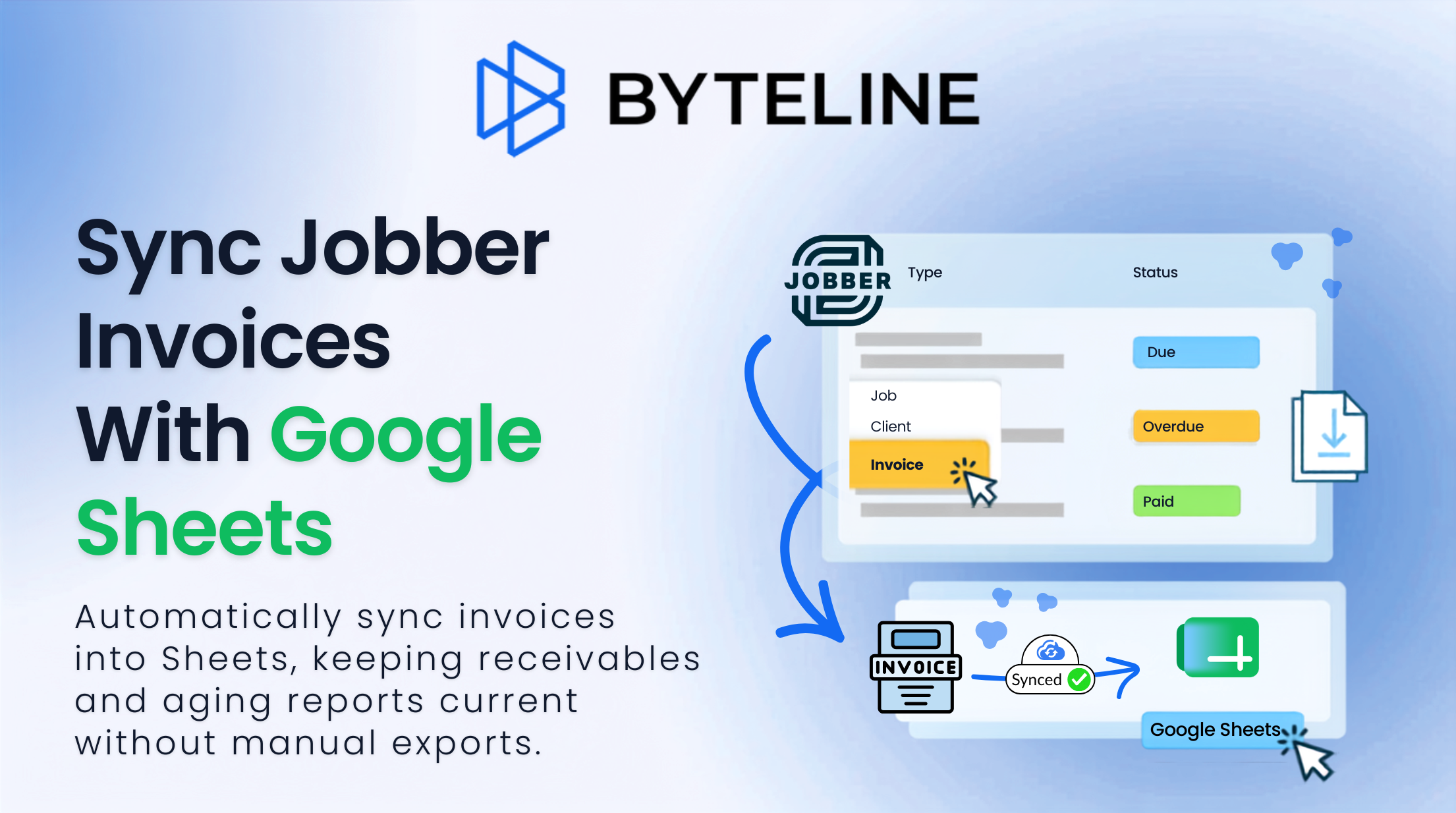
If your main goal is to get your Jobber data into Google Sheets and keep it updated automatically, you can start by looking at the complete Byteline Jobber→Google Sheets workflow.
See how Byteline keeps Jobber data live in Google Sheets
You can choose the Jobber data you want to sync, connect Google Sheets, and configure how that information should appear in your spreadsheet.
For a more detailed walkthrough of setup, supported data, and sync options, see the Jobber Data Sync documentation.
The key is to start with the outcome you actually need.
If you want one event to trigger another action, use an automation tool.
If you want your Jobber data to remain available and up to date in Google Sheets, use a data sync.
Frequently asked questions
Can I export Jobber to Google Sheets automatically?
Yes. Instead of manually exporting Jobber data and importing it into Google Sheets, a data sync can automatically populate your spreadsheet and continue updating it as the underlying Jobber records change.
Byteline can sync existing records and continue monitoring future changes, which makes it useful when you need more than a one-time export.
Can I sync existing Jobber records to Google Sheets?
Yes. Byteline can sync existing Jobber records before continuing with ongoing changes.
This is one of the key differences between a persistent data sync and a workflow that begins when a future event occurs.
What Jobber data can I sync with Google Sheets?
Byteline supports several Jobber data types, including clients, jobs, and invoices, with additional Jobber data supported as the integration expands. For the most current list, check the Byteline Jobber documentation.
Is Zapier or Byteline better for Jobber and Google Sheets?
It depends on the goal.
Use Zapier when you want a specific event in Jobber to trigger an action somewhere else.
Use Byteline when you want a dataset from Jobber to remain synchronized with Google Sheets over time.
Is Byteline a Zapier alternative?
For certain data synchronization use cases, yes—but Byteline is not trying to replace everything Zapier does.
Zapier is a broad automation platform.
Byteline specializes in maintaining data between connected applications. So if your main requirement is a Jobber Google Sheets integration where the spreadsheet should remain continuously updated, Byteline is a more directly specialized solution.
Does the Google Sheet stay updated after the initial sync?
Yes, when you configure a live sync, Byteline continues monitoring the records covered by your configuration and updates the connected data as changes occur.
That allows the spreadsheet to act as a continuously maintained view of your Jobber data rather than a static export.

.png)
.png)