Use case
Relevant apps:
How to Get Jobber Invoices into Google Sheets (and Keep Them Updated): A Bookkeeper’s Guide
This guide answers the questions bookkeepers and owners actually ask about getting Jobber billing data into Google Sheets, and walks through the sync template that makes the Friday ritual obsolete. It’s a companion to our full Jobber → Google Sheets sync guide; this one drills into invoices specifically.
Can I export Jobber invoices to Google Sheets automatically?
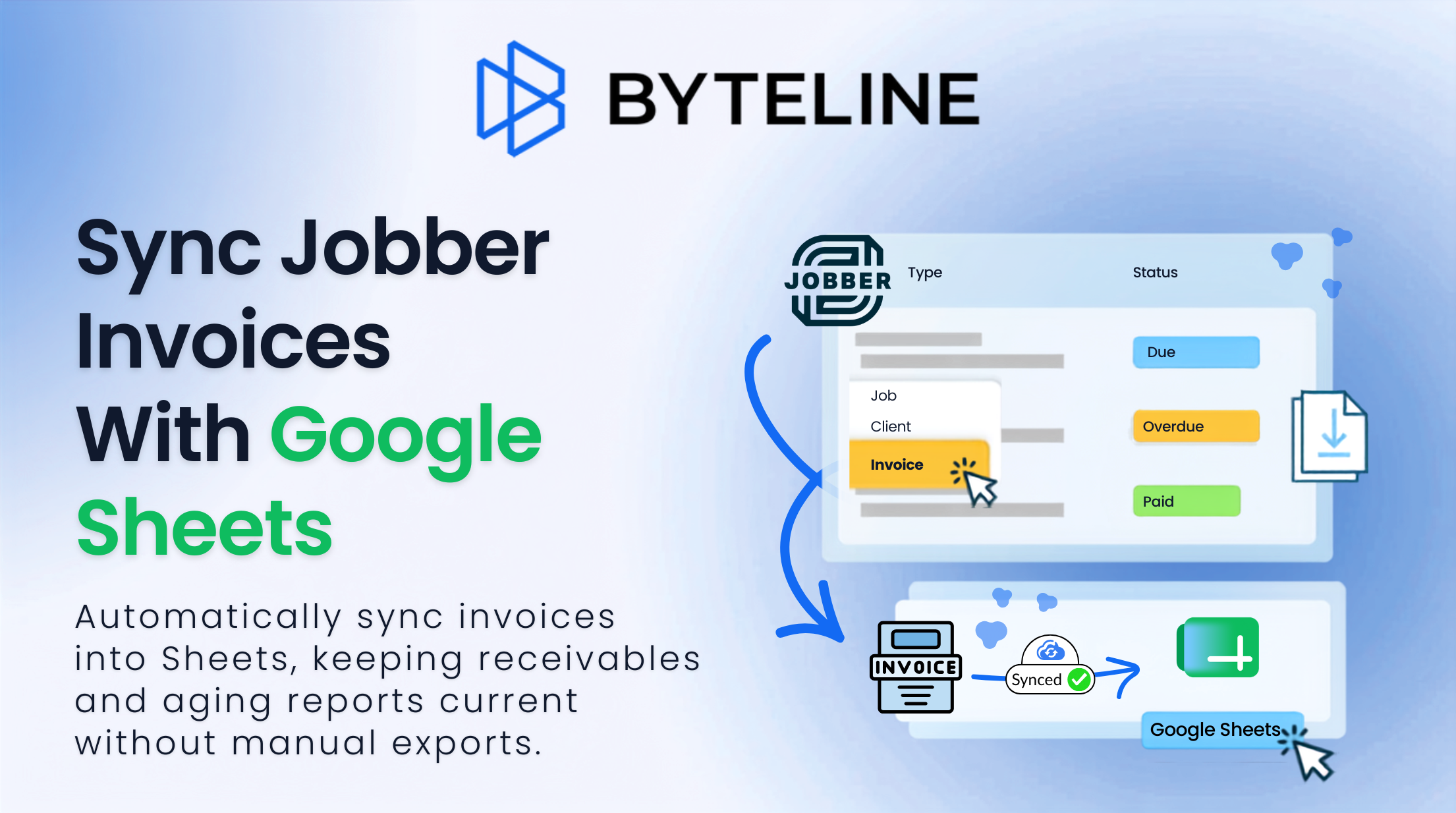
Yes — and “automatically” is the part that matters. Byteline has a prebuilt template called Sync Jobber Invoices to Google Sheets Rows. It does two things in one setup:
- Imports the last 90 days of invoices so your Sheet starts with a working history, not a blank grid.
- Keeps syncing new and updated invoices as they’re created or modified in Jobber — one-way, Jobber → Sheets, so the spreadsheet is a safe reporting surface that can’t write back into your billing data.
In the template picker you’ll see it tagged Initial import, Ongoing sync, One-way, and — unique to this template — Last 90 days.
Byteline template picker with the Sync Jobber Invoices to Google Sheets Rows template selected, showing its Last 90 days initial import badge
How do I set it up?
The flow is the same guided setup as the main guide — only the template choice differs:
1. Start a new sync at console.byteline.io and choose Jobber as the first app and Google Sheets as the second.
2. Pick the Invoices template — Sync Jobber Invoices to Google Sheets Rows — from the “Choose how to sync Jobber ↔︎ Google Sheets” picker.
3. Connect Jobber. Byteline confirms your chosen template and prompts a one-time Jobber authorization — nothing syncs until you review and start. Then authorize your Google account the same way.
4. Choose the destination. Select the spreadsheet and the specific sheet/tab where invoice rows should land — your A/R tracker tab, a tab in the month-end workbook, wherever the books live.
Byteline connect second app screen with Google Sheets connected and a destination sheet tab chosen
5. Confirm the auto-mapped fields. Byteline analyzes both sides, maps the invoice fields, and confirms “All required fields are mapped.” Every Jobber source field carries a read-only flag with an arrow into its Sheet column — the guarantee that your billing data only flows out, never back in. Add mapping and Fix mappings are there if your tracker needs more or different columns.
Byteline field mapping screen showing Jobber fields auto-mapped to Google Sheets columns with read-only flags on the Jobber side
6. Review the summary and preview. The Sync Progress and Review screen lays out the direction (Historical: Jobber → Google Sheets; Ongoing: Jobber → Google Sheets — “Existing Data and Future Changes”), both connected apps, and the full mapping, then generates a preview of the result before anything is committed.
Byteline Sync Progress and Review screen summarizing direction, connected apps, and field mappings before going live
7. Go live. Byteline runs the 90-day historical import first, then keeps watching Jobber. The sync dashboard gives you a Live toggle, a manual check you can trigger any time (useful right before a close), and a record change history showing every create, update, and delete — an audit trail bookkeepers will appreciate.
Byteline confirmation that the historical sync completed and the sync is live and actively syncing changes
Total setup time is around ten minutes, and most of that is deciding which tab the data should land in.
Which invoice fields come across?
The template maps the fields a billing workflow needs — invoice identifiers, the client, the dates that drive aging, and the money columns. Expect the shape to look like this:
| Jobber (source) | Google Sheets (destination) |
|---|---|
| Invoice ID / number | Invoice ID / Invoice Number |
| Subject | Subject |
| Client name | Client |
| Issued date | Issued Date |
| Due date | Due Date |
| Status (draft, sent, paid, past due) | Status |
| Total | Invoice Total |
| Balance | Balance Due |
| Invoice web link | Jobber Web URI |
As with every Byteline template, the Jobber side is read-only and column names don’t have to match — the mapping is explicit, so your headers can read however your chart of accounts likes. Use Add mapping or Fix mappings during setup if you want more or different fields.
Why does it only import 90 days? What if I need more history?
The 90-day initial import is a deliberate starting point: it’s enough history to build aging and trailing-quarter reports immediately, without dragging years of closed invoices into a working tracker. If you need deeper history, choose Start from Scratch instead of the template and define your own scope — or keep your archival exports in a separate tab and let the sync own everything recent.
How current is “current”? What happens when an invoice is paid?
Near real time — changes typically land in the Sheet within seconds to a few minutes. And this is the difference that matters for A/R: when an invoice’s status flips from sent to paid in Jobber, Byteline updates the existing row rather than appending a new one. Your Sheet is a mirror, not an append-only log. A SUM over the Balance Due column is always today’s receivables, not a number you have to reconcile.
That row-tracking behavior is exactly what trigger-based tools (Zapier, Make, Pabbly) struggle with — they’re built for “new invoice → new row,” and updates are where the duct tape starts. The main guide covers that comparison in full, including how per-record billing beats per-task billing for busy invoice months.
What can I build once invoices are syncing?
A/R aging. Helper column: =IF(H2>0, TODAY()-E2, "") (Balance Due in H, Issued Date in E), then bucket with a pivot — Current / 31–60 / 61–90 / 90+.
Outstanding balance, live. =SUM(Invoices!H:H) — the number your owner asks for every Monday, answering itself.
Month-end close checklist. With the sync running, closing the month becomes review work instead of data entry:
1. Filter Status = draft — anything that should have gone out?
2. Sort Balance Due descending — call the top five.
3. Pivot Issued Date by month vs. Invoice Total — does billed revenue match the jobs you completed? (Pair with the jobs sync to see both sides in one workbook.)
4. Snapshot the aging tab into your close folder. Done.
Is this safe to share with an outside bookkeeper?
That’s one of the strongest reasons to do it. Your bookkeeper gets a live, always-current view of billing without a Jobber seat — share the Google Sheet, not your operational system. One-way sync means nothing they touch in the Sheet can alter an invoice in Jobber.
If you also want them to have the customer list — for statements or collections — the Jobber clients sync drops a current client roster into the same workbook.
Billing data is the last place you want “probably current.” Pick the template, point it at your Sheet, and let receivables report themselves.
👉 Try Byteline for free and have your invoices syncing in about ten minutes.

.png)
.png)