Use case
Relevant apps:
How to Build an Auto-Updating Jobber Dashboard with Claude and Google Sheets
The Limitations of Standard Jobber Reporting
Jobber does a great job of helping home service businesses manage their day-to-day operations. From scheduling jobs and managing customers to creating invoices and tracking payments, it brings a lot of important information together.
Jobber also offers built-in reports for understanding business performance, including invoicing, revenue, and outstanding payments.
But what happens when you want to create a report that's a little different from the standard options?
Maybe you have monthly revenue targets that you maintain separately. Perhaps you want to compare invoiced revenue against those targets, add your own calculations, or share a customized financial dashboard with someone who works primarily in Google Sheets.
You can export Jobber reports and work with the data in a spreadsheet. The problem is that an exported file is a snapshot. When invoices are created, updated, or paid, that exported spreadsheet doesn't automatically receive those changes.
Jobber also offers an AI Custom Report Builder on its Plus plan, allowing users to create reports through natural-language prompts. It's useful for analyzing information directly inside Jobber, but it doesn't replace every need for a customizable spreadsheet that combines Jobber records with independently maintained business data.
For businesses that already use Google Sheets for budgeting, forecasting, or financial tracking, there's a simpler approach: bring live Jobber data into the spreadsheet instead of repeatedly bringing exported reports into it.
A Live Jobber Financial Dashboard in Google Sheets
Imagine opening a Google Sheet each morning and seeing an up-to-date view of your business's invoicing activity.
You can see how much you've invoiced, how much customers still owe, and whether you're on track to meet your monthly revenue target.
You don't need to download a new CSV file or manually update the underlying invoice records.
That's the idea behind a Jobber Google Sheets dashboard powered by Byteline.
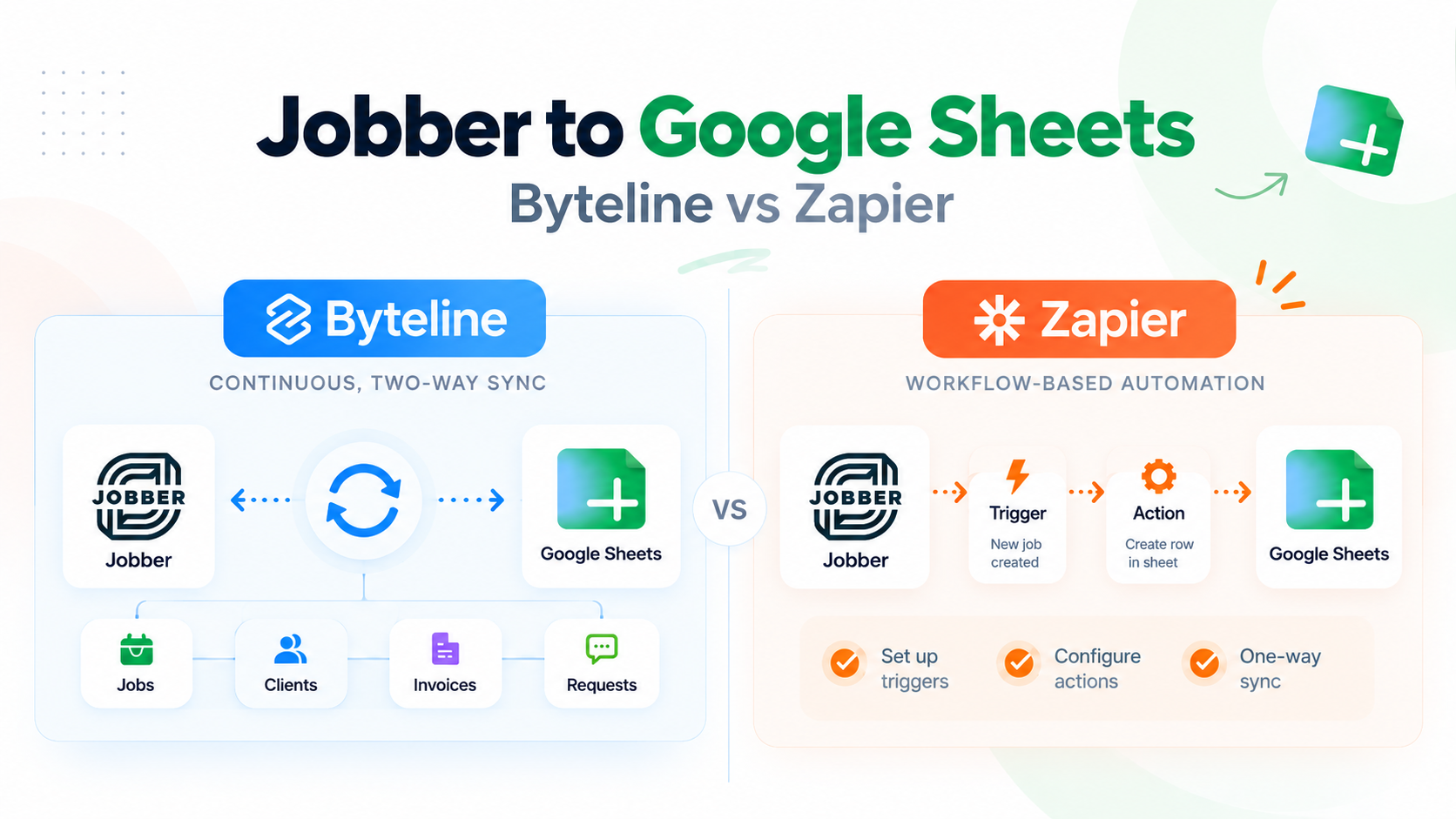
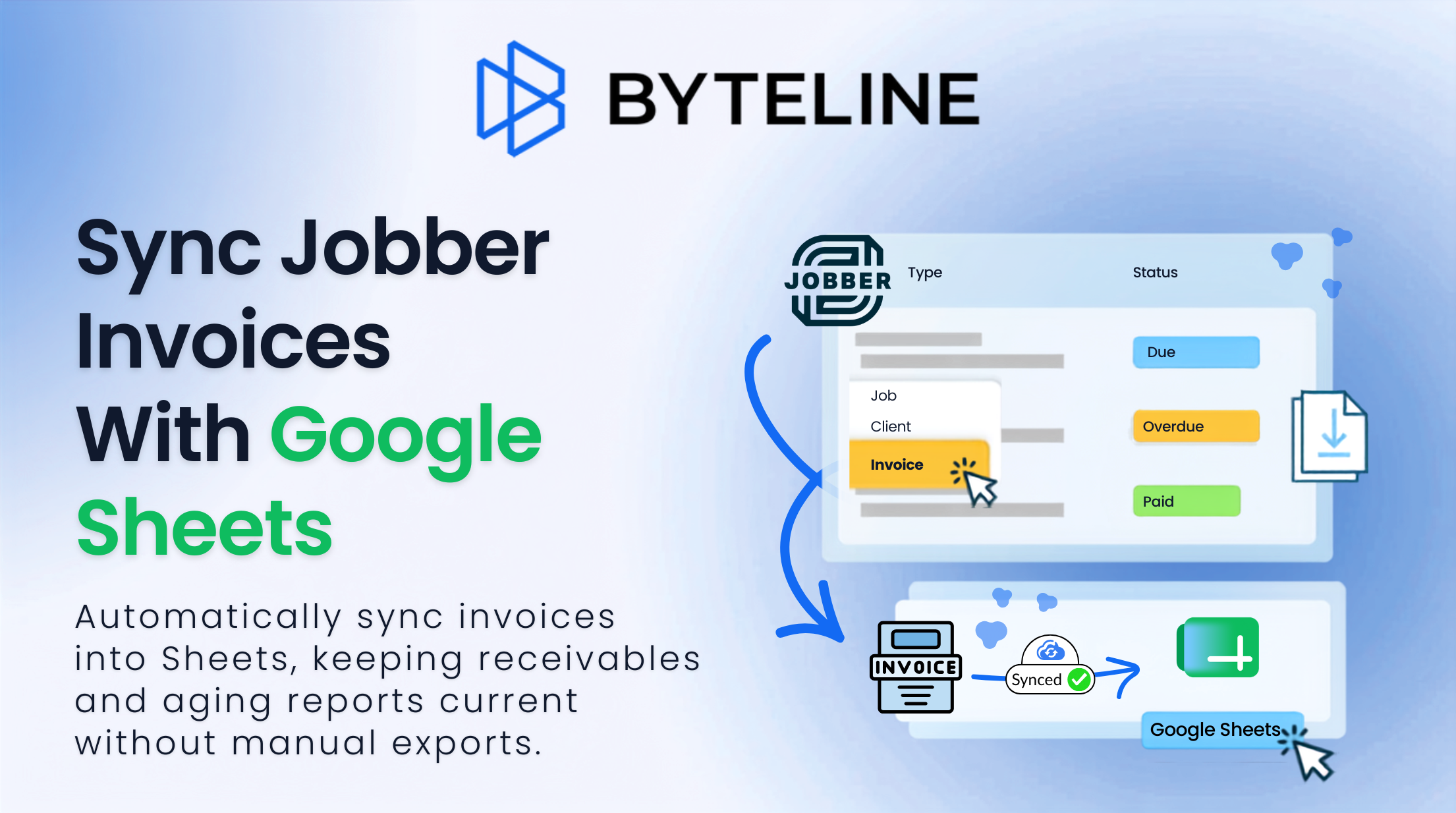
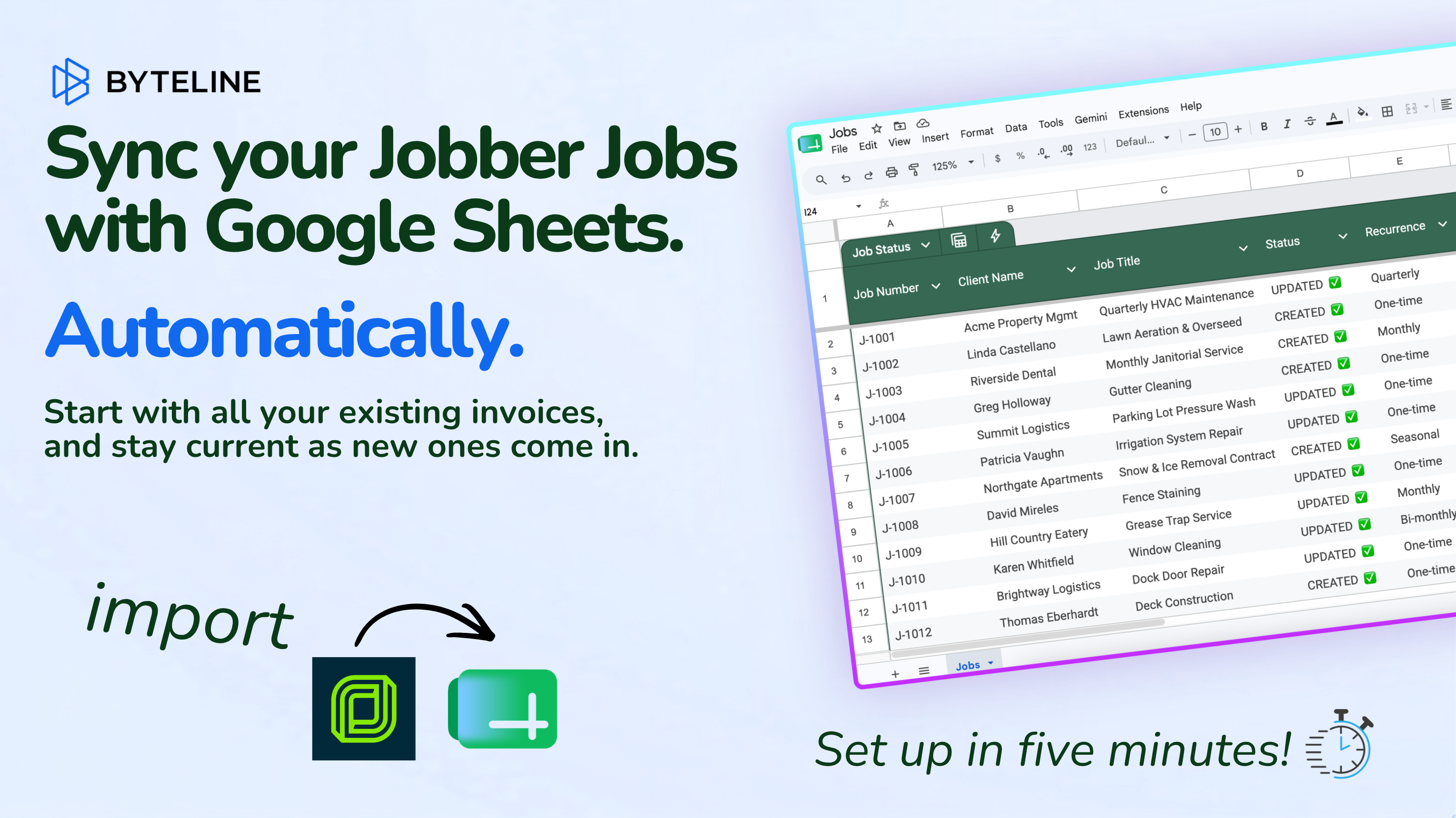
Byteline connects Jobber to Google Sheets and synchronizes your invoice records. It can import your existing invoices and keep the spreadsheet updated as supported changes occur in Jobber.
Once that data is available in Google Sheets, you can use Claude AI to build a dashboard with formulas and charts based on those records.
Each tool plays a different role:
- Jobber manages your customers, jobs, invoices, and payments.
- Byteline keeps your Jobber invoice data synchronized with Google Sheets.
- Google Sheets provides a flexible place for calculations, charts, business targets, and collaboration.
- Claude AI helps you create the dashboard without having to write every spreadsheet formula yourself.
The result is a custom financial dashboard that continues to be useful long after its initial creation.
You can learn more about the integration on our Jobber to Google Sheets page.

What Your Jobber Dashboard Can Show
You don't need dozens of charts or complicated financial models to create a useful dashboard.
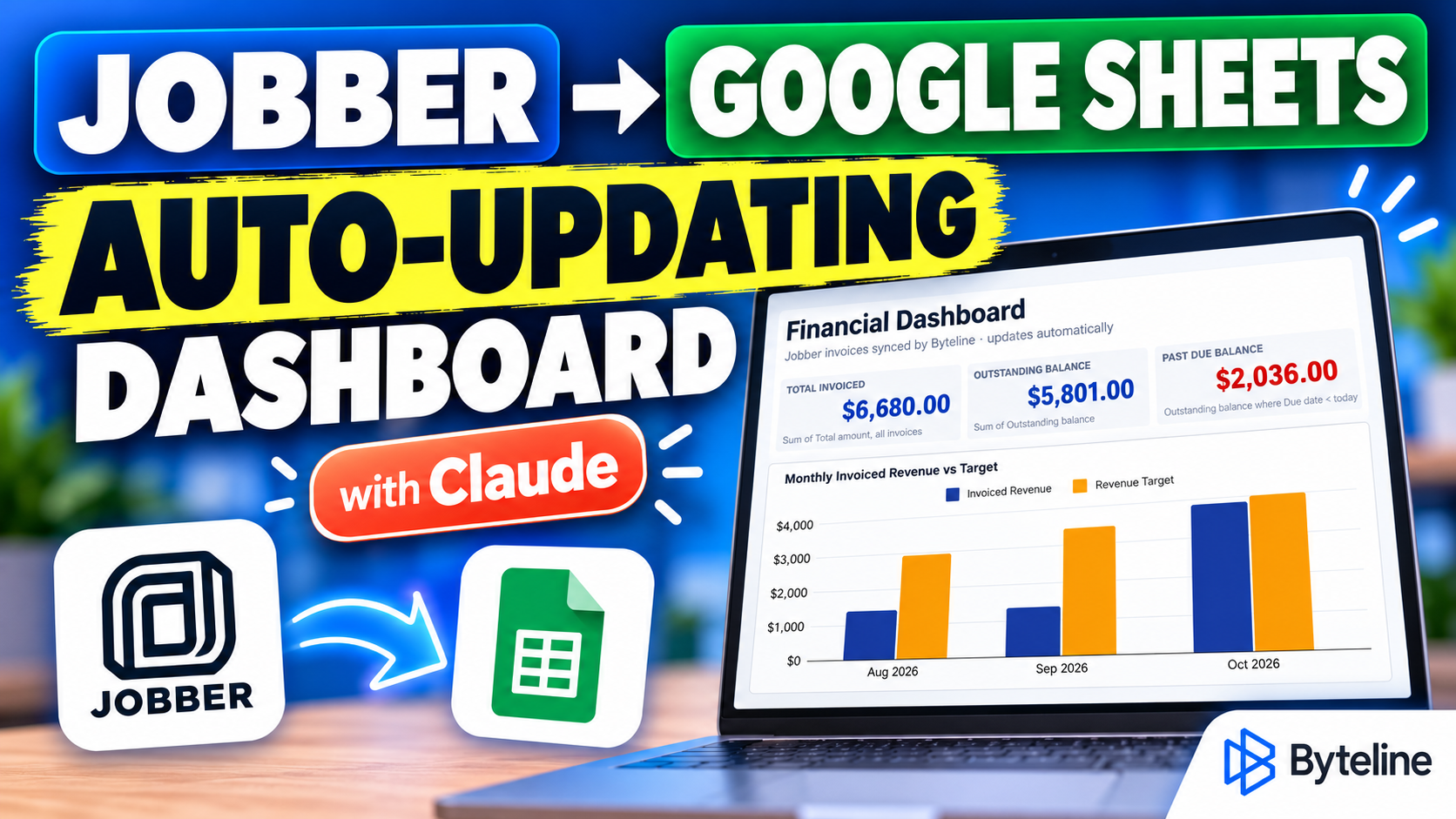
For our example, we built a simple Jobber invoice dashboard with three key financial metrics and one chart.
Total Invoiced
This shows the total value of invoices issued in Jobber.
It's a quick way to understand your overall invoicing activity. You can also break it down by month to see how invoicing changes over time.
Keep in mind that invoiced revenue isn't the same as money collected. An invoice can be issued even when the customer hasn't paid yet.
Outstanding Balance
Knowing how much you've invoiced is useful, but knowing how much customers still owe is just as important.
The outstanding balance metric adds up the unpaid amounts across your invoices, helping you understand how much invoiced money remains to be collected.
When a payment is recorded in Jobber and Byteline synchronizes the updated balance, this metric can recalculate automatically.
Past Due Balance
Not every unpaid invoice is overdue.
This metric focuses specifically on invoices with outstanding balances whose due dates have already passed.
For a busy service business, it provides a quick view of payments that may need follow-up, without having to review every invoice individually.
Monthly Invoiced Revenue vs. Target
This is where Google Sheets becomes especially useful.
Suppose your business has the following monthly revenue targets:
| Month | Revenue Target |
|---|---|
| August | $3,000 |
| September | $3,500 |
| October | $4,000 |
You can maintain these targets in a separate Google Sheets tab while Byteline keeps your Jobber invoice data synchronized in another tab.
Claude can then help create a chart comparing your monthly invoiced amounts against those targets.
Now you have a dashboard that combines information from two different sources: actual invoicing activity from Jobber and business goals that you've defined yourself.
And if you change a target in Google Sheets, the chart can reflect that change too.
Build Once with Claude, Keep It Updated with Byteline
Here's where this approach gets interesting.
Traditionally, you might export your Jobber invoices, use those records to build a report, and repeat the process whenever you need updated information.
With Claude and Byteline, you can separate dashboard creation from ongoing data synchronization.
Claude helps build the dashboard. Byteline keeps the source data current.
In our example, we used Claude to create a financial dashboard with native Google Sheets formulas and a chart linked to those formulas.
Once the dashboard was built, we didn't need Claude to generate it again.
What Happens When a New Invoice Is Created?
Let's say it's October, and your business has invoiced $3,901 against a monthly target of $4,000.
You're just $99 short of the target.
Now imagine you complete a furnace repair and create a new $800 invoice in Jobber.
Here's what happens:
- The new invoice is created in Jobber.
- Byteline synchronizes the invoice into Google Sheets.
- The spreadsheet formulas recalculate using the new invoice.
- October's invoiced amount increases from $3,901 to $4,701, exceeding the $4,000 target.
The dashboard updates without manually exporting anything or asking Claude to rebuild the report.

This is what makes an auto-updating Jobber dashboard so useful for ongoing business reporting.
And it works for updates to existing invoices too. For example, when an outstanding invoice is paid in Jobber, the outstanding balance and past-due metrics can decrease after the updated data reaches Google Sheets.
The important detail is that the dashboard uses formulas and chart ranges designed to accommodate changing invoice records. Static AI-generated summaries won't automatically update in the same way.
Why Use Google Sheets Instead of Jobber's Built-In Reports?
You might be wondering whether you really need a separate dashboard when Jobber already includes reporting features.
For many businesses, Jobber's built-in reports are sufficient. If you're checking standard operational or financial metrics, there may be no reason to move that reporting outside Jobber.
But Google Sheets offers something different: the freedom to combine your Jobber records with your own business information and calculations.
For example, your business might track revenue targets in one spreadsheet, maintain expense estimates in another, and use Jobber for invoicing.
With synchronized invoice data in Google Sheets, you can bring those pieces together in a reporting format that makes sense for your business.
You can also create additional calculations, adjust charts, collaborate with team members, and organize information without being limited to a predefined reporting layout.
Another advantage is that you're not relying on a one-time export. Byteline keeps the underlying invoice records synchronized, so your formulas and charts can continue working with current information.
This can be particularly useful for business owners, office managers, and bookkeepers who already spend time working in spreadsheets.
And although Jobber's AI Custom Report Builder is available on its Plus plan, this Google Sheets approach gives businesses another option for creating customized reports without requiring that specific Jobber feature.
The goal isn't to replace Jobber's reporting tools. It's to give you more flexibility when your reporting needs extend beyond them.
Create Your Own Live Jobber Dashboard
Building a useful financial dashboard doesn't have to mean purchasing complicated reporting software or spending hours maintaining spreadsheets.
With Jobber, Byteline, Google Sheets, and Claude, you can create a dashboard tailored to your business and keep it updated as your invoices change.
Start with something simple: total invoiced, outstanding balances, past-due payments, and monthly revenue targets.
Once those numbers are available in one place, you have a financial view you can return to whenever you need it.
And because the underlying records stay synchronized, you can spend less time updating reports and more time understanding what the numbers mean.
Ready to build your own live Jobber dashboard?
Start syncing Jobber invoices to Google Sheets with Byteline.
For complete connection and configuration details, see our Jobber Data Sync documentation.
You can also watch our video demonstration to see how Claude creates the dashboard and how a new Jobber invoice automatically updates the spreadsheet.
Build your dashboard once. Keep your Jobber data current with Byteline.

.png)
.png)