Relevant apps:
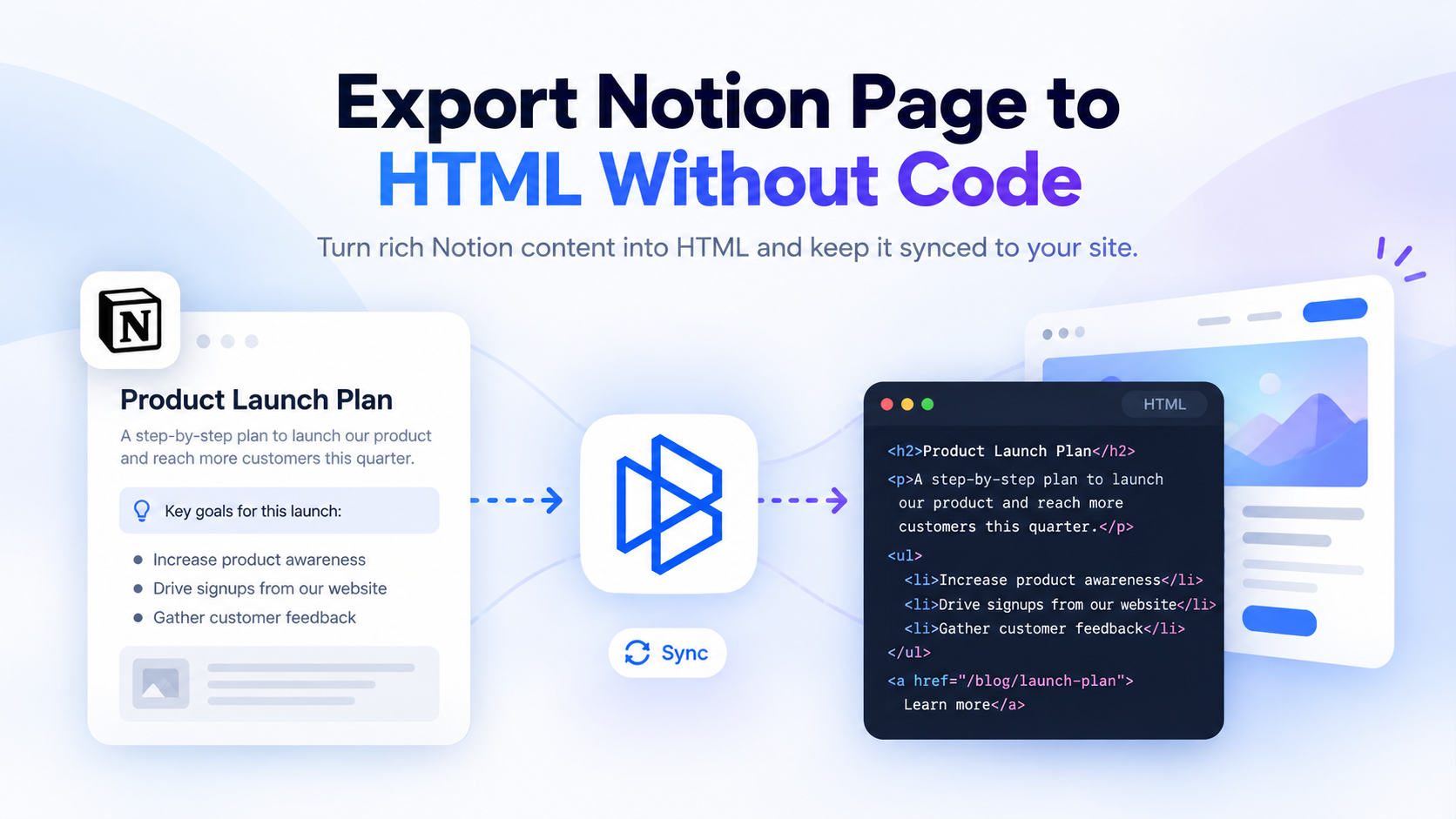
Export Notion Page to HTML Without Code
Notion is a great place to write and organize content. But sometimes that content needs to live somewhere else — especially on a website.
If you only need a one-time copy of a Notion page, exporting it as HTML is straightforward. But if you regularly publish content from Notion to a website, repeatedly exporting files, copying content, and updating your CMS can quickly become tedious.
In this guide, we'll look at the easiest way to export a Notion page to HTML, when manual exporting works well, and when it makes more sense to automatically keep your Notion content synced with your website.
The easiest way to export a Notion page to HTML
If you only need to export a Notion page once, you probably don't need another tool.
Notion includes a built-in export option that lets you download a page as HTML.
Open the page you want to export, click the menu in the top-right corner, choose Export, and select HTML as the export format.
Notion will create a downloadable file containing the page and its related assets.
This works well when you want to:
- Archive a Notion page
- Move content somewhere manually
- Get a one-time HTML version of a page
- Inspect or reuse the generated content
For occasional exports, this is usually the simplest option.
The limitation is that this is still a manual process. If the content changes tomorrow, the HTML file you exported today does not update automatically.
That becomes more important when Notion is being used as the place where your team actually writes and manages website content.
When exporting HTML manually isn't enough
Imagine that your team writes blog posts, documentation, landing-page content, or other website content in Notion.
You export the page as HTML, move the content into your website CMS, and publish it.
A few days later, someone updates the page in Notion.
Now the website version is outdated.
You have to export the content again, move it again, and make sure the website matches the latest version in Notion.
For a single page, that might not be a big problem. But once you have dozens or hundreds of pieces of content, the process becomes difficult to maintain.
The real problem is no longer:
How do I export a Notion page to HTML?
It becomes:
How do I keep the content in Notion and my website continuously in sync?
Keep your Notion content automatically synced instead

Automatically sync Notion content with Byteline
Byteline lets you use Notion as your content source while automatically sending that content to another platform.
You connect Notion, choose the destination, map the appropriate fields, and start the sync.
Byteline can first bring over your existing content and then continue keeping future changes updated.
That means your workflow can become:
Write in Notion → Byteline syncs it → content stays updated on your website
Instead of:
Write in Notion → export HTML → download files → copy content → update CMS → repeat every time something changes
This is how Byteline powers its own blog
We use this workflow ourselves.
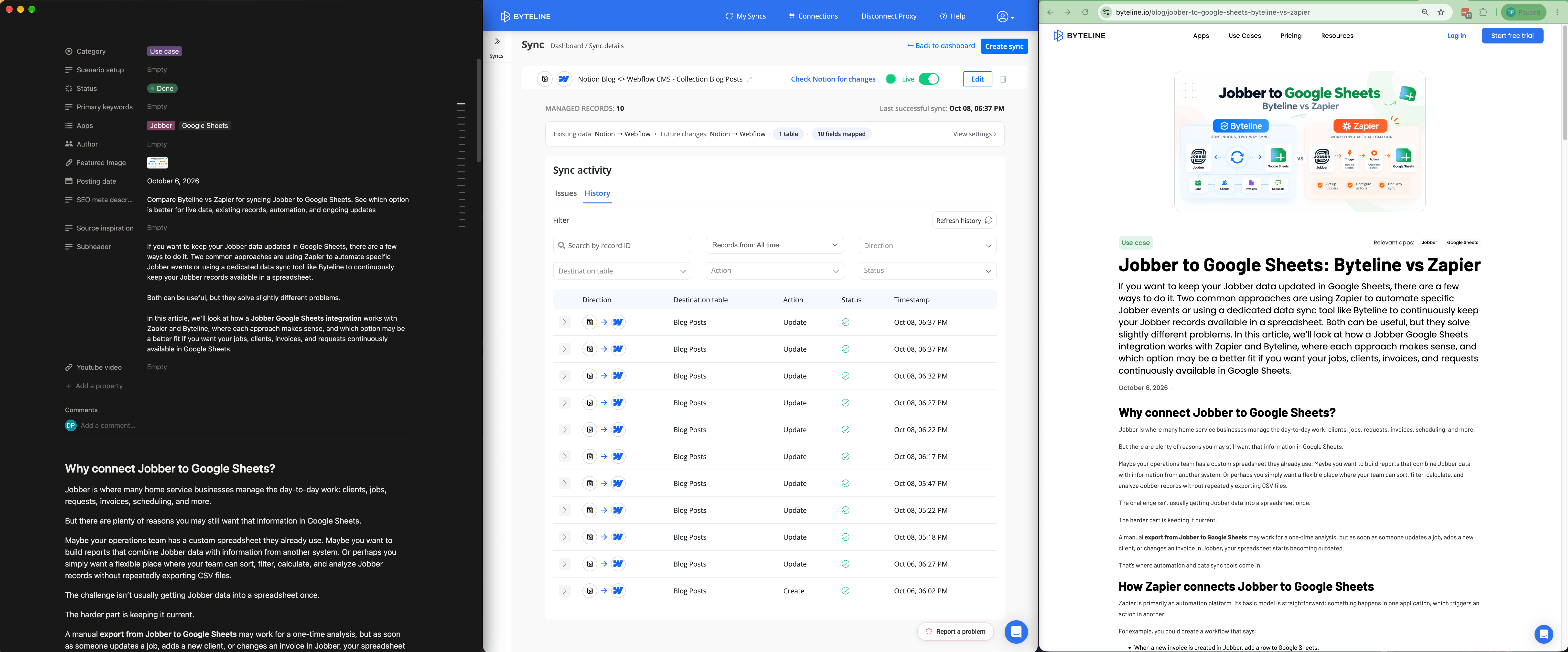
The Byteline blog is managed in Notion and synced automatically to Webflow using Byteline. That sync has been running for around two years.
When we update an existing article in Notion, the changes are automatically synced to Webflow. When we write a new article, it is added to the Webflow CMS through the same sync.
There is no need for someone on our team to export HTML, copy the content into Webflow, or manually keep the two systems aligned.
Notion remains the place where we write and manage the content, while Webflow remains the website CMS. Byteline keeps the two connected in the background.
This same setup can be useful for teams managing blog posts, documentation, resources, job listings, or other website content in Notion.
You can also control which Notion records are synced and how individual Notion fields map to fields in the destination CMS.
Publish Notion pages to Webflow automatically
One of the most useful applications of this is Notion to Webflow CMS.
Suppose your marketing team manages articles in a Notion database.
Each Notion record might contain:
- Title
- Slug
- Author
- Category
- Featured image
- Meta description
- Page content
You can create matching fields inside a Webflow CMS Collection and use Byteline to keep those fields synchronized.
The important part is the page content itself.
Notion pages contain rich content such as headings, paragraphs, lists, links, and other formatting. Byteline can convert this rich Notion content into HTML so that it can be stored in the corresponding rich-text content field in Webflow.
Once the sync is live, your content workflow becomes much simpler.
Your team continues writing in Notion.
When the Notion content changes, Byteline keeps the corresponding Webflow CMS item updated.
There is no need to repeatedly export the page, copy the HTML, or manually update the Webflow CMS item.
This works especially well for content such as:
- Blog posts
- Help center articles
- Resource libraries
- Documentation
- Case studies
- Job listings
- Knowledge bases
It also lets you separate your content-editing workflow from your website-management workflow.
Writers can work in Notion without needing access to Webflow, while your Webflow CMS remains the publishing destination.
Other things you can do with your Notion data
Webflow is a strong fit when your goal is to publish Notion content on a website, but it isn't the only option.
Sync Notion content to Framer
You can also use Byteline to keep Notion content synced with Framer CMS.
Framer offers its own Notion syncing workflow, but that workflow requires the user to trigger the sync.
With Byteline, the sync can continue running in the background.
That means you don't have to remember to return to Framer and press Sync every time someone updates the original content in Notion.
Update the content in Notion, and Byteline can keep the corresponding content in Framer updated automatically.
This can be useful for Framer-based:
- Blogs
- Resource pages
- Documentation
- Articles
- CMS-driven marketing pages
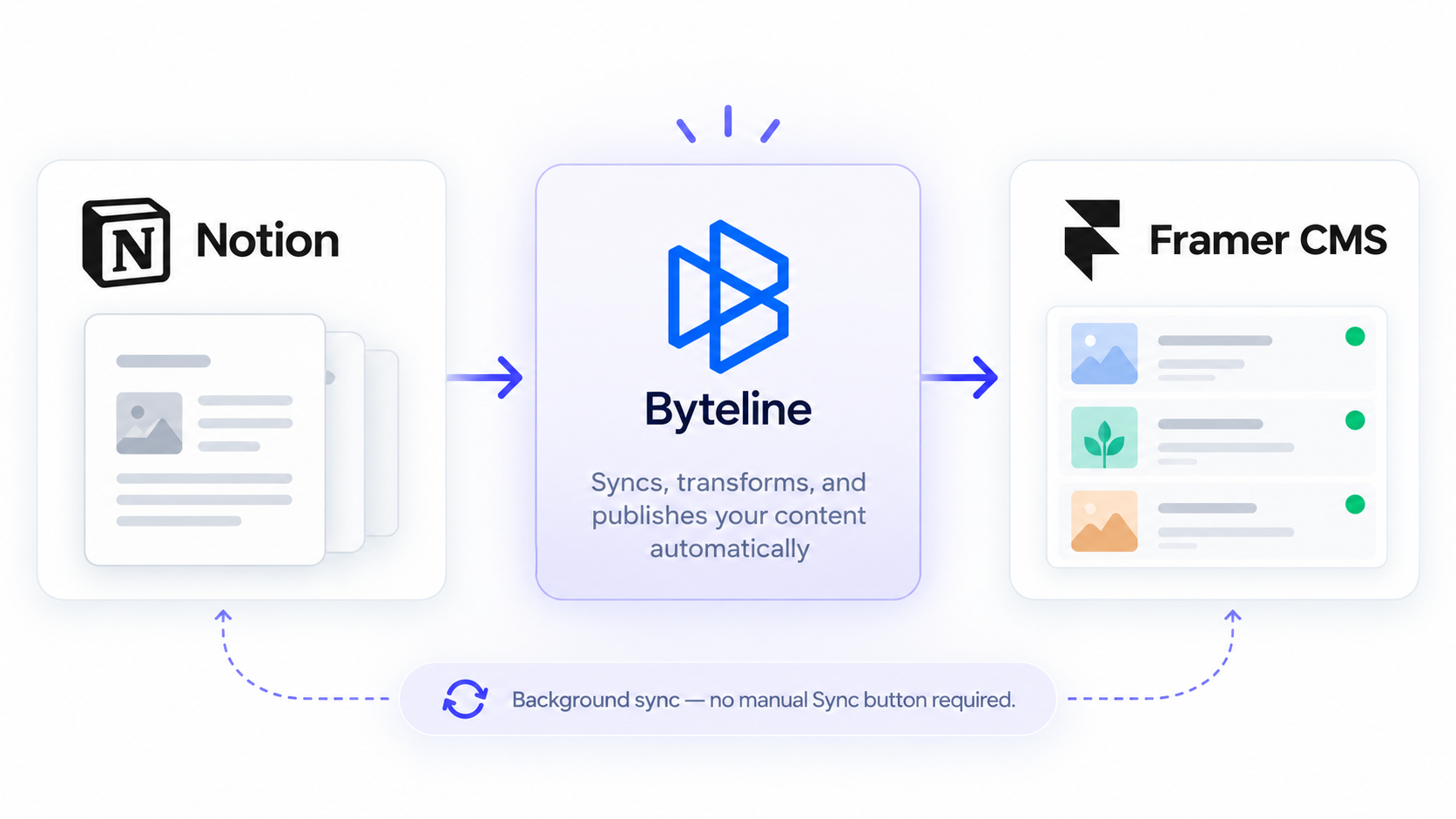
The larger idea is the same regardless of the destination: Notion can remain the place where your team manages content, while Byteline handles keeping that content updated elsewhere.
Sync Notion content with Framer using Byteline →
How the Notion HTML conversion works
When you connect Notion to Byteline, one of the fields available for a Notion page is pageContent.
pageContent represents the rich content inside the body of the Notion page.
Instead of giving you only the database properties around the page — such as title, status, author, or date — Byteline can retrieve the page content itself and convert it into HTML.
For example, a Notion page containing:
- Headings
- Paragraphs
- Bold and italic text
- Bulleted lists
- Numbered lists
- Links
can be converted into HTML that can then be mapped to a rich-text field in another CMS.
That makes pageContent particularly useful when syncing Notion with systems such as Webflow.
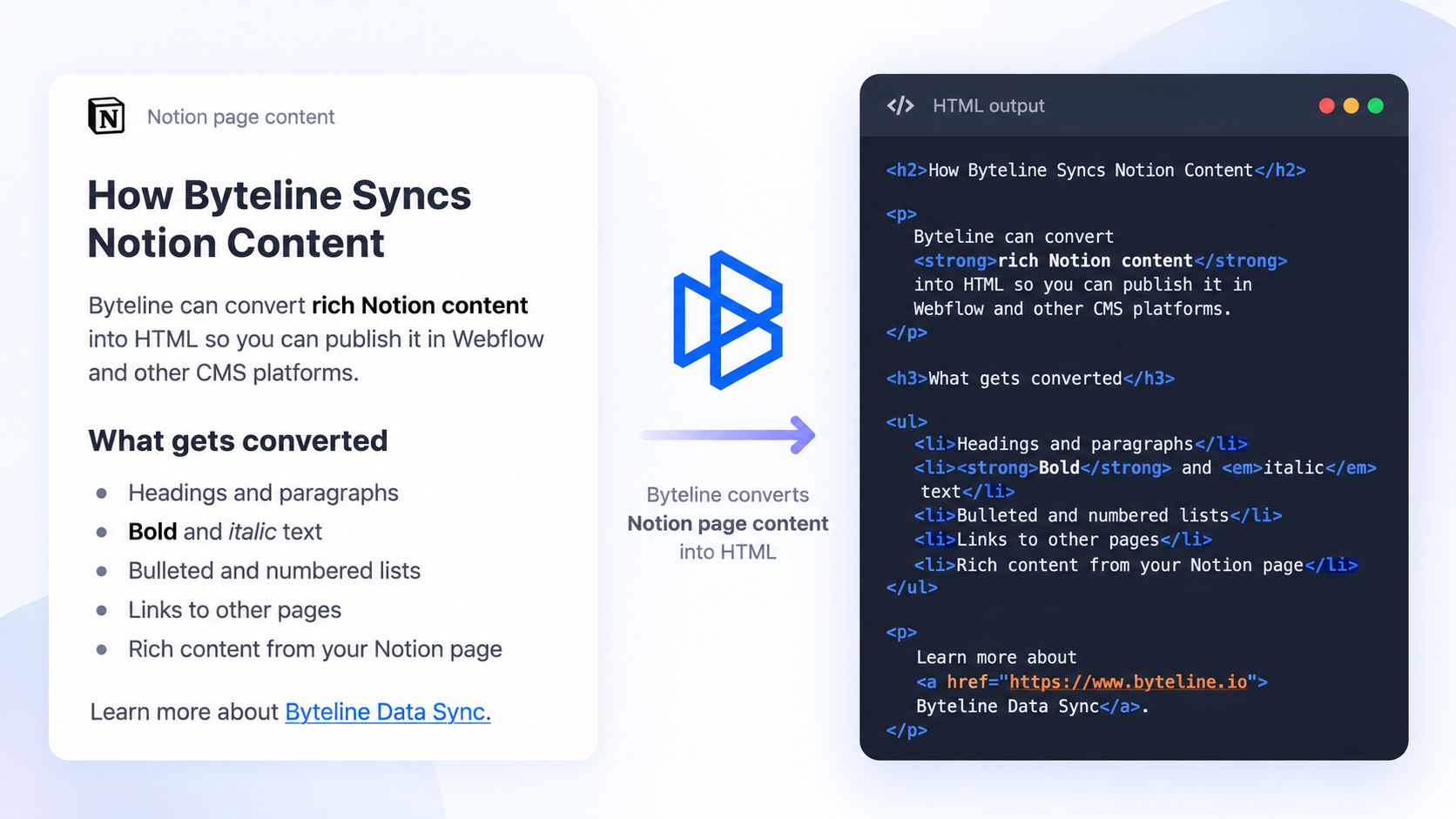
You don't need to manually retrieve individual Notion blocks or build your own conversion logic.
You simply map the Notion pageContent field to the corresponding destination field.
Byteline handles the content conversion as part of the sync.
Manual export vs automatic sync
Whether you should use Notion's built-in export or an automated sync depends on what you're trying to accomplish.
| Manual Notion HTML export | Byteline automatic sync | |
|---|---|---|
| Export a page once | Yes | Yes |
| Best for occasional exports | Yes | No |
| Convert Notion rich content to HTML | Yes | Yes |
| Automatically update destination when Notion changes | No | Yes |
| Keep running in the background | No | Yes |
| Sync multiple pieces of content | Manual | Automatic |
| Map Notion properties to CMS fields | Manual | Yes |
| Useful for ongoing website publishing | Limited | Yes |
If you simply need an HTML copy of a page today, use Notion's built-in export.
If the content needs to remain synchronized with a website or CMS, an automatic sync removes a lot of ongoing manual work.
Stop manually exporting your Notion content
If you manage website content in Notion, you don’t need to keep exporting HTML and republishing it every time something changes.
With Byteline, you can connect Notion to your website CMS, map your fields, and keep your content updated automatically in the background.
For most website publishing workflows, Notion → Webflow CMS is the best place to start.
Using Framer instead? Byteline can also keep Notion → Framer CMS updated automatically, without requiring you to manually trigger each sync.

.png)
.png)