
Work order
WO-2084Leaky faucet
Main Street Apts · Unit 4
- Tenant
- Alex R.
- Status
- Open
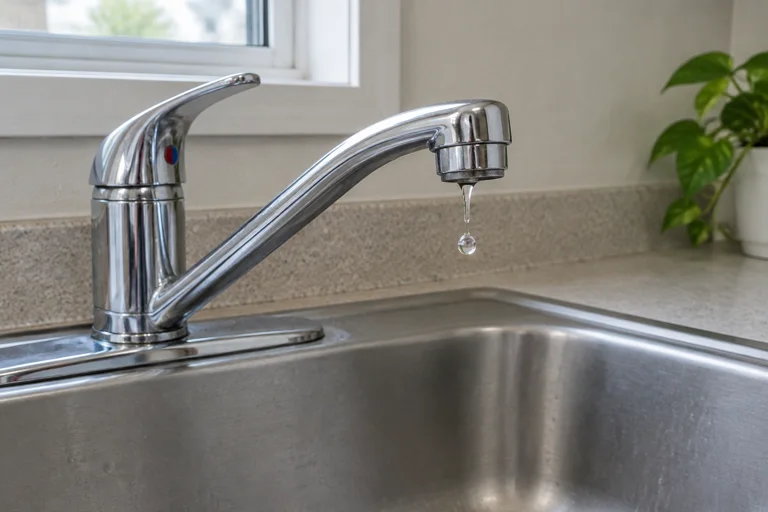
Here’s a close-up photo. The drip is coming from the spout.
 Rentvine
 Jobber
Automatically create Jobber jobs from Rentvine work orders, and keep your teams in sync. Update notes, photos, and status across both systems without copying data.
No manual data entry. No complicated automations. No coding required.
14-day free trial. No credit card required.
RentvineJobberLeaky faucet
Main Street Apts · Unit 4
Here’s a close-up photo. The drip is coming from the spout.
Leaky faucet
Client: Alex R. · Unit 4
JOB NOTES
Here’s a close-up photo. The drip is coming from the spout.
Example records · Supported mapped fields only
Two-way updates apply to supported mapped fields.
Rentvine handles the maintenance tickets. Jobber handles the service work. Without a connection, someone has to keep both sides up to date.
A tenant logs a Rentvine work order. Someone then creates the same job in Jobber, copying the issue, contact details, and property information.
A tenant adds a photo in Rentvine, but the technician working in Jobber never sees it. The latest details get left behind.
Office staff track requests in Rentvine while field crews use Jobber. Neither team has the complete picture without checking the other app.
Byteline keeps Rentvine and Jobber automatically updated for you.
Connect the maintenance request to the service job. Select the supported fields and attachments that give your team the context to do the work.
Create Jobber jobs from qualifying Rentvine maintenance work orders, including the selected issue details and property information.
Bring available tenant names, email addresses, and phone numbers into the job handoff. Separate contact updates depend on supported client mappings and permissions.
Keep supported work order attachments and Jobber job-note attachments connected, so your team can see issue photos and field updates.
Align work order and job statuses with configured mappings. Completion in one app can update the corresponding record in the other.
Move supported text notes between the work order and job. Preserve the context of the request as the repair progresses.
Use the new job to plan the first service visit in Jobber. Confirm visit-creation and scheduling options for your configuration before enabling the workflow.
Follow one repair from a tenant’s request to the technician’s final update. Every step stays connected to the same maintenance issue.
Request received
Alex submits a leaky-faucet work order for Unit 4 at Main Street Apartments. Byteline creates the corresponding Jobber job from the selected work order details.
RentvineJobberLeaky faucet
Main Street Apts · Unit 4
The kitchen faucet keeps dripping, even when turned off.
Leaky faucet
Client: Alex R. · Unit 4
JOB NOTES
The kitchen faucet keeps dripping, even when turned off.
Example records · Supported mapped fields only
Fictional example. Visits shown here are scheduled in Jobber; automatic visit creation requires confirmation for your setup.
Keep requests flowing to the field team, send updates back to property managers, or connect both sides.
RentvineJobberMaintenance work order
Requests and property details
Service job
Field work and repair updates
Keep supported notes, photos, and status fields aligned in both directions. Your office and field team can work in their own app without losing the latest details.
Supported directions and editable fields depend on your configuration and each system’s permissions. Some fields remain read-only; two-way sync does not override those restrictions.
Step 1
Bring selected open work orders into Jobber at setup. If matching jobs already exist, configure record matching first to avoid duplicates.
Step 2
After setup, Byteline runs in the background. New qualifying work orders create jobs, and supported notes, attachments, and status changes stay connected.
No separate Zapier workflows. No repeated CSV exports.
Choose which work order details go into each Jobber field. Configure filters so only relevant maintenance requests reach your service team.
These example mappings show the handoff. Available fields and two-way updates depend on your connection’s capabilities and permissions.
Or limit the sync to selected properties using supported filter fields.
6 fields selected for mapping
3 example work orders
Add your Rentvine connection and grant access to the work order data required for your sync.
Authorize your Jobber account so Byteline can connect maintenance requests to your service jobs.
Map supported fields, choose work order filters and directions, and confirm job matching and visit options.
Import selected existing records if needed. Turn on the sync to keep new requests and future updates connected.
RentvineJobberSpend less time copying maintenance details between systems and more time doing the work. Byteline keeps your Rentvine work orders and Jobber jobs up to date.
14-day free trial. No credit card required.